
-
Products
Pen Display SeriesPen Tablet SeriesAccessories
- Enterprise
- Community
- Support
 A budget of $600–$700 puts the focus on an important buying question: what should you prioritize when choosing a pen display for professional creative work?
At this price, it is tempting to compare products by screen size, resolution, or pressure sensitivity alone. Those specifications are useful, but they do not tell the whole story. A drawing display is part screen, part input device, and part of a larger creative setup. Its value depends on how those parts work together.
Before choosing a model, it helps to look beyond the headline numbers and consider the features that will actually matter in your workflow.
Resolution is one of the easiest specifications to compare. A 4K UHD display has a resolution of 3840 × 2160 pixels, giving you a detailed image to work with. That detail can be useful when creating fine line art, refining small visual elements, or working on intricate illustrations.
But resolution should not be considered in isolation. Pixel density, measured in pixels per inch (PPI), also affects how densely those pixels are arranged across the screen. Two displays with the same resolution can have different pixel densities because their physical dimensions differ.
For creators, the practical question is how clearly the screen presents the kind of work they do. Fine outlines, small details, and delicate transitions are worth examining closely when comparing displays.
Screen size matters in a different way. A larger workspace may be useful when you need room for a detailed canvas, while the physical footprint still needs to fit your desk and preferred working distance. There is no single screen size that suits every creator.
A useful comparison should therefore consider three things together: resolution, pixel density, and the amount of physical workspace you want.
Color is another area where specification sheets can be misleading if you look at only one number.
Color gamut describes the range of colors a display can reproduce. Common reference spaces include sRGB, Adobe RGB, and Display P3 or DCI-P3. Coverage figures help describe how much of a particular color space the display can represent.
Color accuracy addresses a separate question: how closely the colors shown on screen match their intended reference values. Delta E is one measure used to express color difference; a lower value generally indicates a smaller difference.
For illustration and concept art, color range can be important when building palettes and working with nuanced tones. For designers preparing visual assets, the intended output and color workflow also matter. A wide gamut alone does not guarantee that every color will be displayed accurately.
If color is central to your work, compare both the stated gamut coverage and the color-accuracy specification. It is also worth checking which color modes are supported and whether the display offers suitable calibration or color-management tools.
The aim is not to collect the largest numbers on a specification sheet. It is to understand whether the display's color capabilities match the work you need to produce.
Pressure sensitivity is a familiar specification in digital drawing. It describes the pen system's ability to detect changes in the force applied to the stylus. Compatible software can use those changes to adjust brush width, opacity, or other stroke properties.
More pressure levels may sound impressive, but the number alone does not fully describe the drawing experience. The pressure response curve, driver behavior, and software compatibility all influence how the pen responds to your hand.
Other specifications can help complete the picture:
Report rate: how frequently the device reports pen-position data.
LPI: the pen system's reported detection resolution, expressed in lines per inch.
Tilt recognition: support for detecting the angle of the pen, which compatible brushes can use to change stroke shape or shading.
These specifications describe different parts of pen input, so they should not be treated as interchangeable measures of quality.
When comparing displays, check which features are supported and consider how you use your pen. Someone who relies on pressure variation and angled shading may pay particular attention to pressure response and tilt support. Someone working on precise line art may also care about tracking consistency and the relationship between the pen tip and the displayed line.
A specification sheet can tell you what the device supports. The way those features work together is what ultimately matters.
The physical surface is easy to overlook when most comparisons focus on resolution and color.
Full lamination reduces the separation between the display layers, helping reduce the apparent distance between the pen tip and the image beneath it. This can make the drawing position feel more direct, particularly when working with detailed lines or making precise adjustments.
Anti-glare and anti-fingerprint treatments address everyday usability. Anti-glare treatment helps reduce reflections from surrounding light, while anti-fingerprint treatment helps reduce visible marks on the surface.
Some displays also use textured, paper-like surface treatments. These are intended to influence the feel of pen movement across the screen, but they should not be assumed to reproduce every characteristic of drawing on actual paper. Surface preference is personal, and the interaction between the surface and pen tip is part of that experience.
For a device you may use for long creative sessions, these practical details deserve a place in your comparison alongside the headline specifications.
A professional pen display is not defined by its screen and pen alone.
Touch support, where available, can provide another way to interact with the canvas. Depending on the device and software, touch gestures may support actions such as navigating, zooming, or rotating the workspace. The exact behavior depends on the supported touch functions and application.
Shortcut controls serve a different purpose. A dedicated controller can put frequently used commands within reach, although its usefulness depends on the actions you configure and how often you use them.
These additions will not matter equally to everyone. A creator who prefers keyboard shortcuts may place less value on a separate controller, while someone who frequently changes tools may appreciate having dedicated controls. Touch can be useful in a compatible workflow, but it should be evaluated alongside the other ways you interact with your computer.
Compatibility matters as well. Before buying, check the device's supported operating systems, the software you use, the required connections, and any driver or configuration requirements. A capable display still needs to work with the rest of your setup.
It is also worth checking what is included in the retail package. A pen display sold with useful workflow accessories or color-management tools represents a different package from a display sold on its own, even when their headline prices are similar.
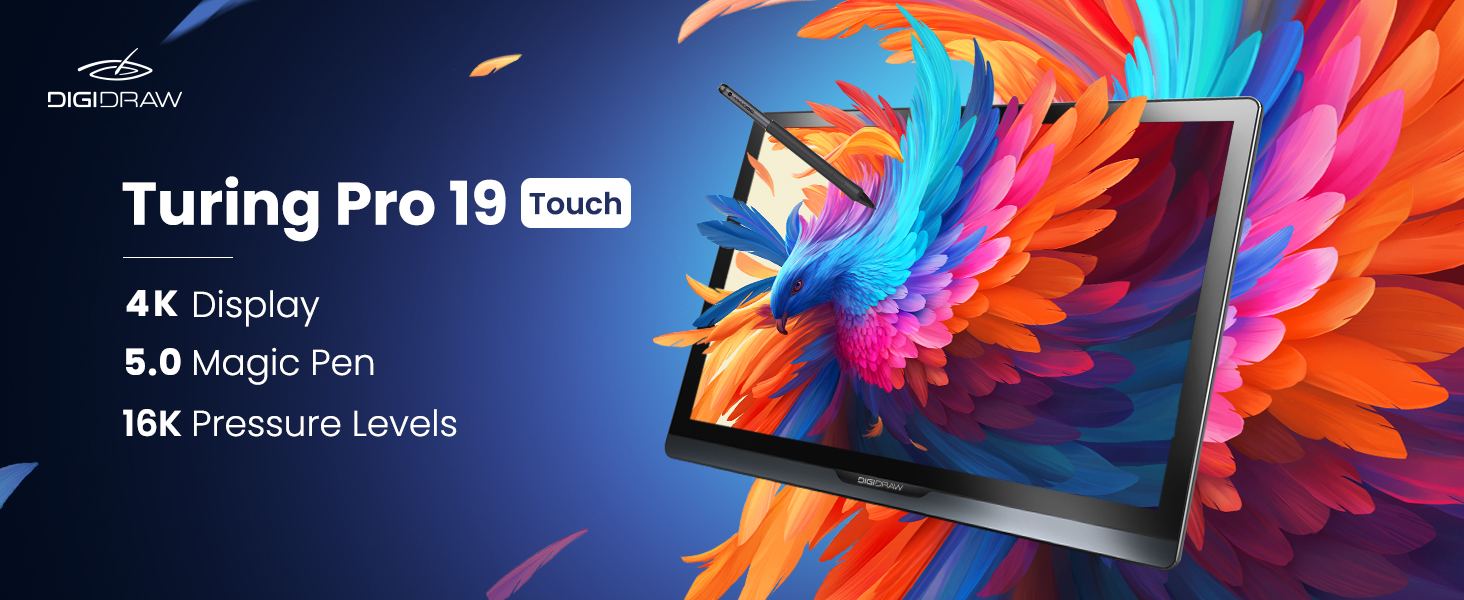 The DIGIDRAW Turing Pro 19 Touch is one product to consider in this price discussion. It brings together a 19-inch positioning, UHD 4K resolution, pressure-sensitive pen input, touch functionality, and display features aimed at creative work.
Its listed specifications include:
UHD 4K resolution: 3840 × 2160
Pixel density: 238 PPI
Color gamut: 99.8% sRGB, 96% Adobe RGB, and 98% DCI-P3
Color accuracy: Delta E below 1.3
Pressure sensitivity: 16,384 levels
Pen resolution: 5080 LPI
Tilt recognition: ±60°
Display construction: full lamination
Surface treatment: AG + AF 3.0 Paper-like technology
The model also supports multi-touch, and the supplied campaign materials identify a K30 portable shortcut controller, a professional color-management solution, and a color calibrator as part of the product offering. Buyers should confirm the exact package for the store and region from which they plan to purchase.
Each feature addresses a different consideration. The 4K display and PPI relate to visual detail; the gamut and Delta E specifications describe aspects of color performance; pen features cover input capabilities; and the surface and accessories contribute to the wider working setup.
Rather than treating this list as proof that one display is right for everyone, use it to compare the features against your own requirements. For example, color-focused creators may want to examine the color specifications and calibration options carefully, while those who use touch or custom shortcuts should check how those functions fit their regular workflow.
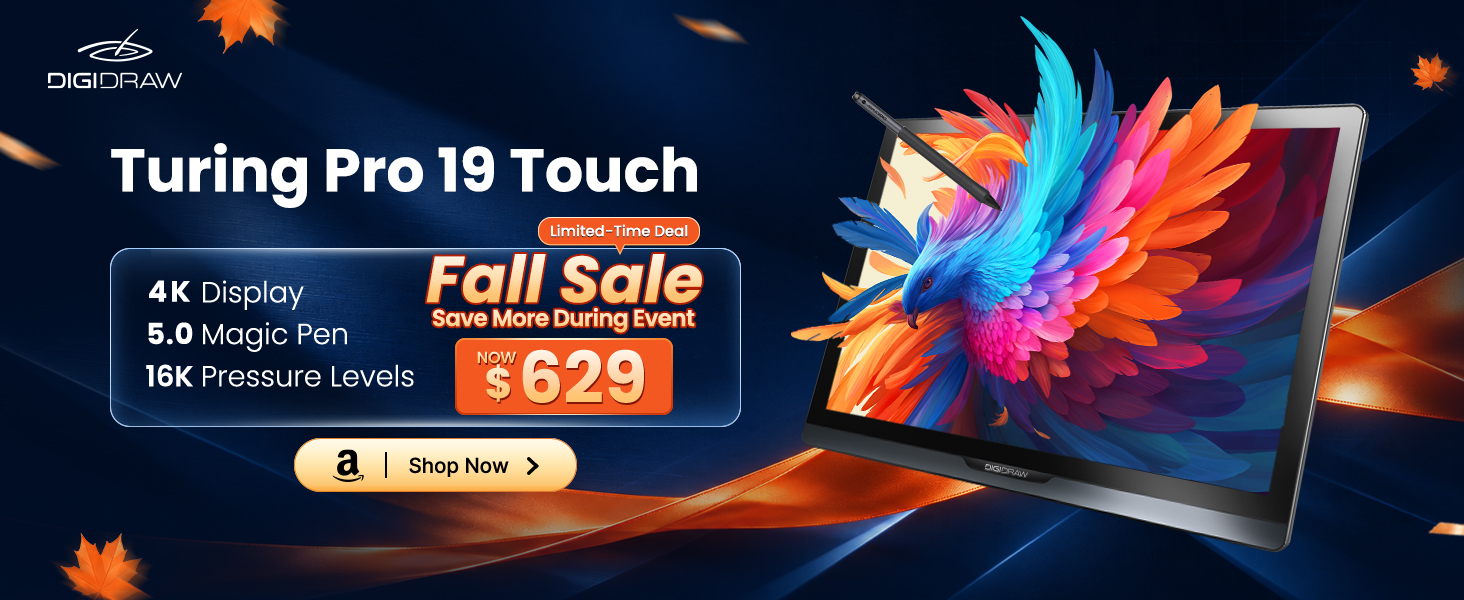
The DIGIDRAW Turing Pro 19 Touch is currently listed at $629 on the DIGIDRAW online shop, placing it within the $600–$700 range discussed here. Pricing and package details can vary by store or promotion, so check the applicable product listing before purchasing.
Before making a decision, narrow your requirements to the features that have a direct role in your work.
If fine detail matters most, compare resolution, PPI, and the size of the usable workspace. If color is central to your output, look at gamut coverage, color accuracy, supported color modes, and calibration options. If the drawing experience is your priority, examine pressure response, tilt recognition, tracking, and surface construction.
Then consider the parts of the package that affect everyday use: touch support, shortcut controls, included accessories, connections, software compatibility, and the physical space the display will occupy.
This approach makes it easier to compare products without assuming that the most expensive option—or the one with the longest specification list—is automatically the best choice.
A $600–$700 budget can be a useful starting point for evaluating professional pen displays, but the final decision should come down to the combination of features you will actually use. Look beyond the headline number, check the details that matter to your workflow, and choose the display that makes sense for the work you want to do.


