
-
Products
Pen Display SeriesPen Tablet SeriesAccessories
- Enterprise
- Community
- Support
At $629, a professional pen display deserves a closer look than a single headline specification can provide. A 4K screen may catch your attention, but the value of a drawing display also depends on its color performance, pen input, surface design, and the tools that come with it.
For artists and designers comparing professional creative hardware, the more useful question is not simply whether a display is affordable. It is what that price actually includes—and whether those features fit the way you work.
The DIGIDRAW Turing Pro 19 Touch brings together a 19-inch display format, UHD 4K resolution, a high-specification pen system, and color-management accessories. Here is a closer look at what those features mean in practice.
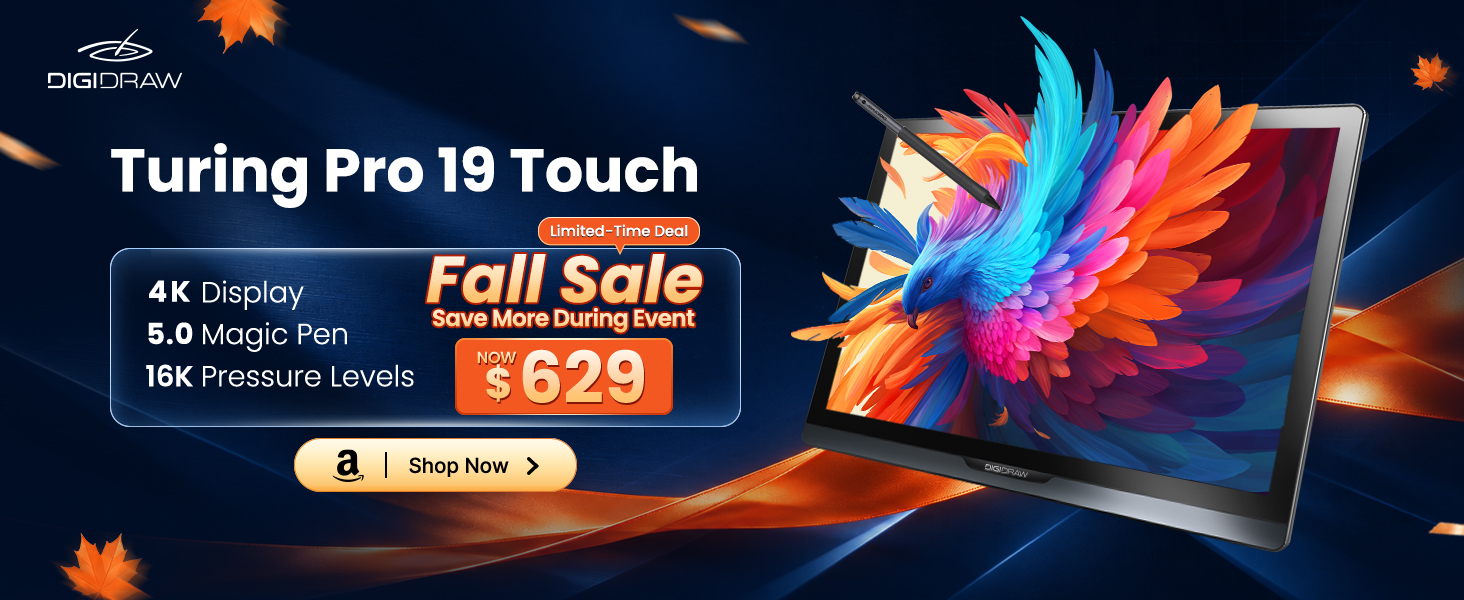
Screen size and resolution solve different problems. A larger display provides more physical working space, while resolution determines how many pixels are available to render the image.
The Turing Pro 19 Touch is positioned as a 19-inch pen display with a resolution of 3840 × 2160 (UHD 4K) and a listed pixel density of 238 PPI. For work involving fine line art, small details, or intricate shapes, resolution and pixel density are relevant because they affect how precisely visual details can be displayed.
The 19-inch format is also worth considering in the context of a real workspace. A very large display is not automatically the right choice for every desk, just as a smaller screen will not suit every working style. The appeal of this size is the balance it aims to offer: space for detailed creative work without requiring the footprint of a much larger display.
That balance is personal. Before choosing a pen display, consider your available desk space, how close you normally sit to the screen, and whether you tend to work on one detailed canvas or across multiple panels and reference windows.
For creators who want a substantial drawing area and 4K resolution in the same device, the combination is a useful starting point.
Resolution is easy to compare on a specification sheet. Color requires a little more attention.
The Turing Pro 19 Touch's listed color-gamut specifications are:
99.8% sRGB
96% Adobe RGB
98% DCI-P3
Its listed color-accuracy specification is Delta E below 1.3.
These figures describe related but different aspects of display performance. Color gamut refers to the range of colors a screen can reproduce, while Delta E indicates the difference between displayed colors and their intended reference colors. A wider gamut does not automatically guarantee more accurate color, so both are worth considering.
This matters for people who work with color as part of the final result: illustrators developing palettes, designers preparing visual assets, or creators who need to review color relationships carefully. The appropriate color standard also depends on the destination of the work and the color-management settings used along the way.
The Turing Pro 19 Touch also comes with a professional color-management solution and a color calibrator, according to the supplied product campaign brief. These additions are relevant for creators who need to manage color deliberately, particularly when their workflow involves more than one display.
They should not be mistaken for a guarantee that every screen will look identical under every condition. Software settings, calibration, and the wider production workflow still matter. The value here is having color-management tools included as part of the product offering rather than considering the display in isolation.
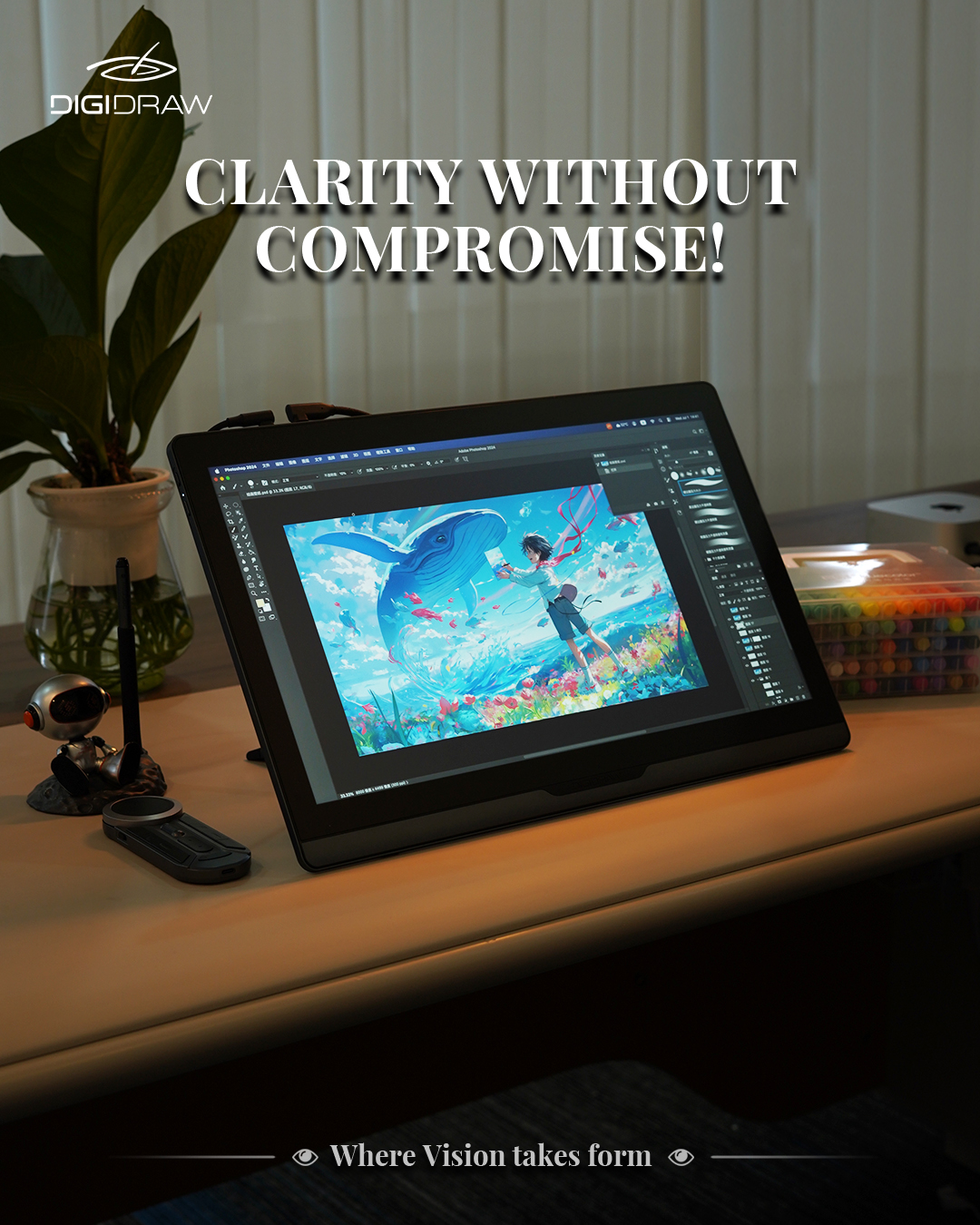
A drawing display can have an excellent screen and still fall short if the pen does not respond in a way that suits the artist.
The Turing Pro 19 Touch's listed pen specifications include 16,384 levels of pressure sensitivity, 5080 LPI, and ±60° tilt recognition.
Pressure sensitivity allows the system to detect changes in how firmly the pen is pressed. In compatible drawing software, that information can be used to vary a brush stroke's width, opacity, or other pressure-controlled properties. Tilt recognition can support brushes that respond to the angle of the pen, depending on the software and brush settings.
LPI, or lines per inch, describes the pen system's reported detection resolution. It is one technical reference point, but it should not be treated as a complete measure of drawing precision on its own.
The number of pressure levels also tells only part of the story. The pressure curve, driver behavior, and software compatibility influence how the pen feels during actual work. A specification sheet can tell you what a device supports; it cannot, by itself, establish that every artist will prefer its drawing feel.
For this reason, it is worth checking the features you actually use in your creative software instead of choosing a pen display by one number alone.
The Turing Pro 19 Touch's listed display features include full lamination and AG + AF 3.0 Paper-like technology.
Full lamination reduces the space between display layers. One benefit is reduced apparent separation between the pen tip and the image beneath it, helping the drawing position feel more direct. This can be particularly relevant when working on detailed lines or making precise adjustments.
AG refers to anti-glare treatment, while AF refers to anti-fingerprint treatment. These features address practical aspects of using a display: reflections can interfere with visibility, and fingerprints can accumulate on a touch or drawing surface during regular use.
The paper-like description identifies the product's surface treatment, but it should not be taken as a claim that the display reproduces every characteristic of traditional paper. Drawing feel remains subjective and depends on the interaction between the surface, pen tip, pressure settings, and the artist's habits.
These are not the most dramatic numbers on a product page. They are, however, part of the experience that becomes noticeable through repeated use.
The supplied Turing Pro 19 Touch campaign brief identifies three items beyond the display itself: a K30 portable shortcut controller, a professional color-management solution, and a color calibrator.
The K30 provides a dedicated way to access shortcuts during a creative workflow. Its usefulness depends on the commands you configure and how often you rely on them. For someone who regularly switches tools, changes brush settings, or repeats common actions, a shortcut controller can be a practical part of the setup.
The color-management solution and calibrator address a different need: managing display color rather than drawing input. Together, these accessories broaden the product offering beyond the screen and pen alone.
Their value depends on whether they fit your workflow. A shortcut controller is less important to someone who rarely uses custom commands; color-calibration tools may be more relevant to someone whose work depends on managing color across displays. The useful comparison is not the number of accessories, but whether they serve a real purpose in your setup.
A pen display is worth evaluating in relation to the work you do, rather than treating “professional” as a single use case.
The Turing Pro 19 Touch campaign materials identify illustration, game and concept art, 3D modeling, product design and prototyping, and graphic design among its intended creative applications.
For illustration and concept work, screen detail and pen behavior may be central considerations. For design tasks, color characteristics and the ability to inspect fine elements may matter more. Creators working across several applications should also check driver and software compatibility as part of the buying decision.
Not every feature will carry the same weight for every person. Someone who needs a much larger workspace may prefer a different format. Someone whose priority is color-sensitive work may want to give the color specifications and management process particular attention. And anyone upgrading from another drawing device should consider how the new display will fit into their existing computer and software setup.
Those questions are more useful than assuming that a higher specification automatically makes a product the right choice.
 At the $629 promotional price used for this article, the DIGIDRAW Turing Pro 19 Touch brings together a 19-inch display format, UHD 4K resolution, specified wide-gamut color performance, a 16,384-level pressure system, tilt recognition, full lamination, and dedicated workflow and color-management accessories.
That is a combination worth evaluating if you are looking for a pen display for serious creative work. The key is to judge the package as a whole: display detail, color requirements, pen behavior, surface design, and the accessories that may support your routine.
No specification list can decide whether a display is right for every artist. Desk space, software, working habits, and personal drawing preferences still matter. But a clear understanding of what is included makes the purchasing decision easier.
For creators considering a 19-inch 4K pen display, DIGIDRAW Turing Pro 19 Touch is one option to put on the shortlist—particularly if its combination of display specifications and included tools matches the demands of your workflow.


