
-
Products
Pen Display SeriesPen Tablet SeriesAccessories
- Enterprise
- Community
- Support
Buying a professional pen display can get confusing very quickly.
Open a product page and you may find pressure sensitivity, report rate, LPI, PPI, color gamut, Delta E, lamination, tilt support, refresh rate, and a long list of other specifications. The numbers can look impressive, but they do not always tell you how the display will actually feel when you are drawing, painting, designing, or working on a long project.
That is because a professional pen display is not really about one impressive specification. It is about how several parts of the system work together.
The most useful way to choose one is to start with your workflow rather than the spec sheet.
There is no single feature that makes a pen display “professional.”
An illustrator spending hours on detailed line work may care most about pressure response, drawing area, low latency, and color accuracy. A photographer or graphic designer may pay more attention to resolution, color gamut, color accuracy, and color management. Someone working in animation or 3D may value a larger working area, fast response, precise tracking, and software compatibility.
That is why the right question is not:
“Which pen display has the highest specifications?”
It is:
“Which specifications actually matter for the work I do every day?”
Once you look at it that way, the decision becomes much simpler.
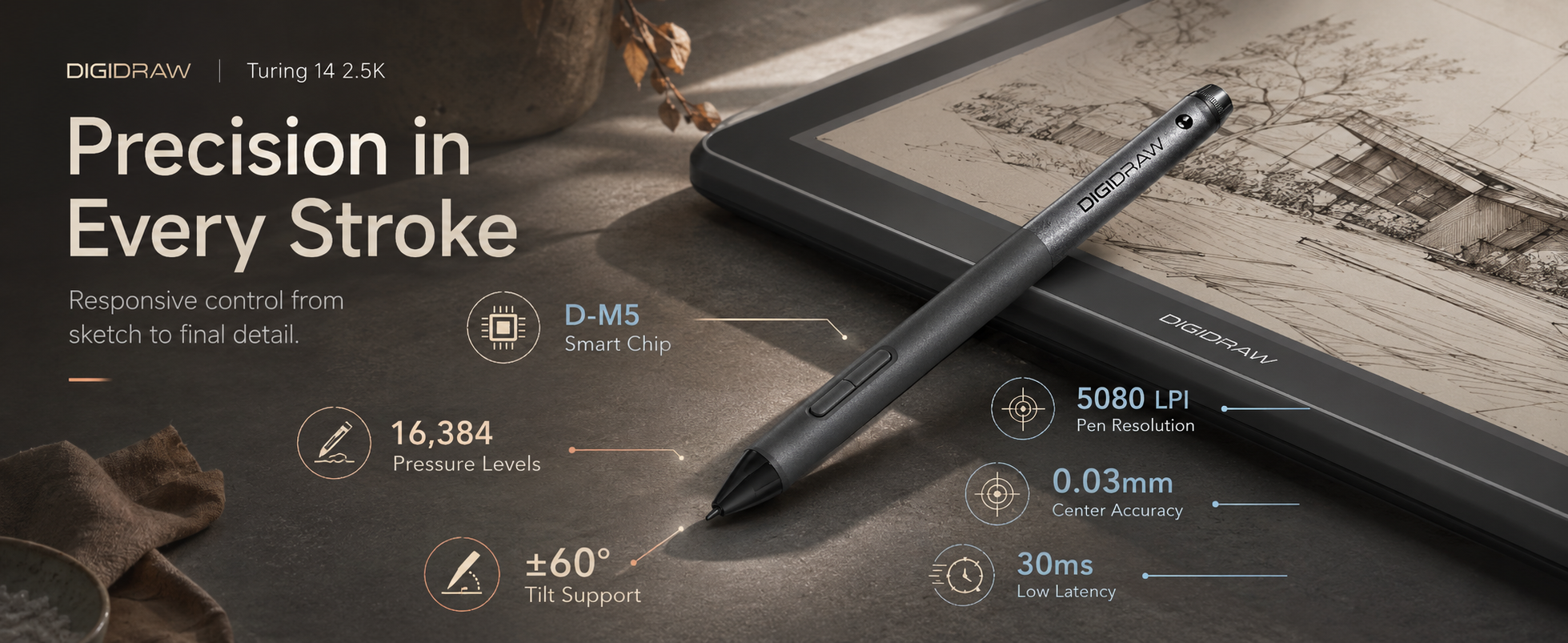
Pressure sensitivity is one of the first specifications most people notice, but the number by itself does not tell the whole story.
Pressure sensitivity determines how accurately the pen can detect changes in the force of your hand. A lighter touch can produce thinner or softer marks, while more pressure can create stronger or wider strokes.
But real drawing performance depends on more than the advertised pressure level. Pen sensor quality, pressure-curve tuning, driver optimization, and software compatibility all affect how predictable and natural the response feels.
That distinction matters in practice.
A professional artist is not necessarily looking for the largest number on the specification sheet. They are looking for a pen that responds consistently enough that subtle changes in hand pressure translate naturally into the artwork.
For detailed illustration, shading, and brush-based work, that kind of control tends to matter far more than simply being able to say the pen has “more pressure levels.”
A pen display can have a good screen and still feel frustrating if the pen does not keep up with your hand.
Report rate describes how frequently the device updates the pen's position. A higher report rate can help capture movement more frequently, which can be useful during fast sketching, animation, large strokes, or gesture drawing. But responsiveness is not determined by report rate alone. Display refresh rate, pen technology, driver optimization, and computer performance all play a role.
Tracking precision matters as well.
LPI, or Lines Per Inch, describes the detection density of a drawing surface. A higher LPI generally allows smaller movements to be recognized more precisely, which can matter when working with fine lines, small design elements, or detailed illustrations.
In other words, responsiveness is a system-level quality. Looking at one number in isolation can give you the wrong impression.
For a pen display, the screen is part of the drawing experience, not just a place to display the finished image.
Resolution determines how many pixels the display has. Common levels include Full HD, QHD or 2.5K, and 4K. Higher resolution can provide clearer fine details and smoother-looking edges, particularly when working on detailed artwork.
But there is another number worth looking at: PPI, or Pixels Per Inch.
Two displays can have the same resolution and still produce different visual experiences because their pixel density is different. A higher PPI can contribute to smoother curves, cleaner edges, and finer visible detail.
So when comparing displays, it is better to look at resolution and pixel density together rather than treating “4K” as an automatic guarantee of a better experience.
Color specifications can also be misleading when viewed as isolated numbers.
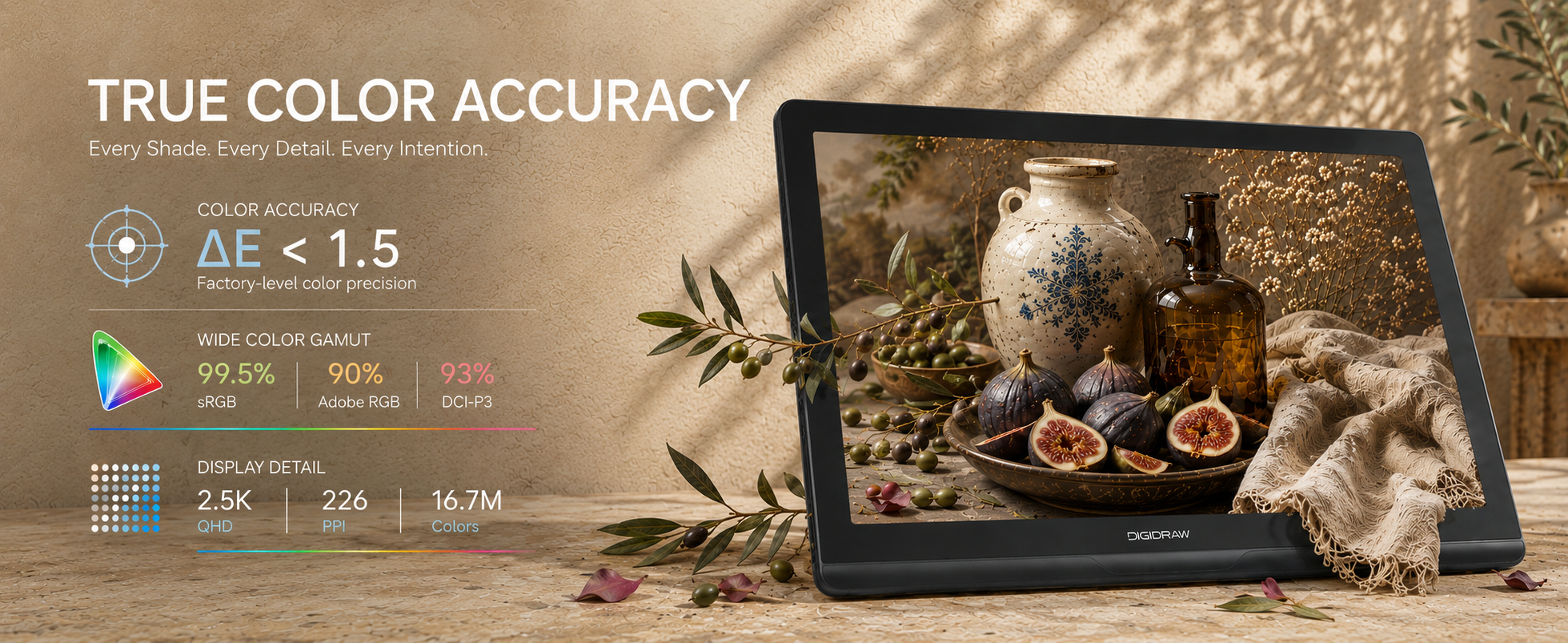
Color gamut describes the range of colors a display can reproduce. Common standards include sRGB, Adobe RGB, and DCI-P3. A wider gamut can allow a display to show a broader range of tones and more subtle color differences.
But a wider color gamut does not automatically mean more accurate color.
Color accuracy is about how closely the displayed colors match the intended colors, and Delta E (ΔE) is commonly used to describe color difference. In general, a lower Delta E indicates a smaller color difference.
This becomes especially important for designers, photographers, and anyone whose work has to remain visually consistent across displays or through a final production process.
So rather than asking only:
“How wide is the color gamut?”
also ask:
“How accurately does the display reproduce those colors?”
Those are related, but they are not the same thing.
One of the advantages of a pen display is being able to draw directly on the image. That makes the relationship between the pen tip and the screen particularly important.
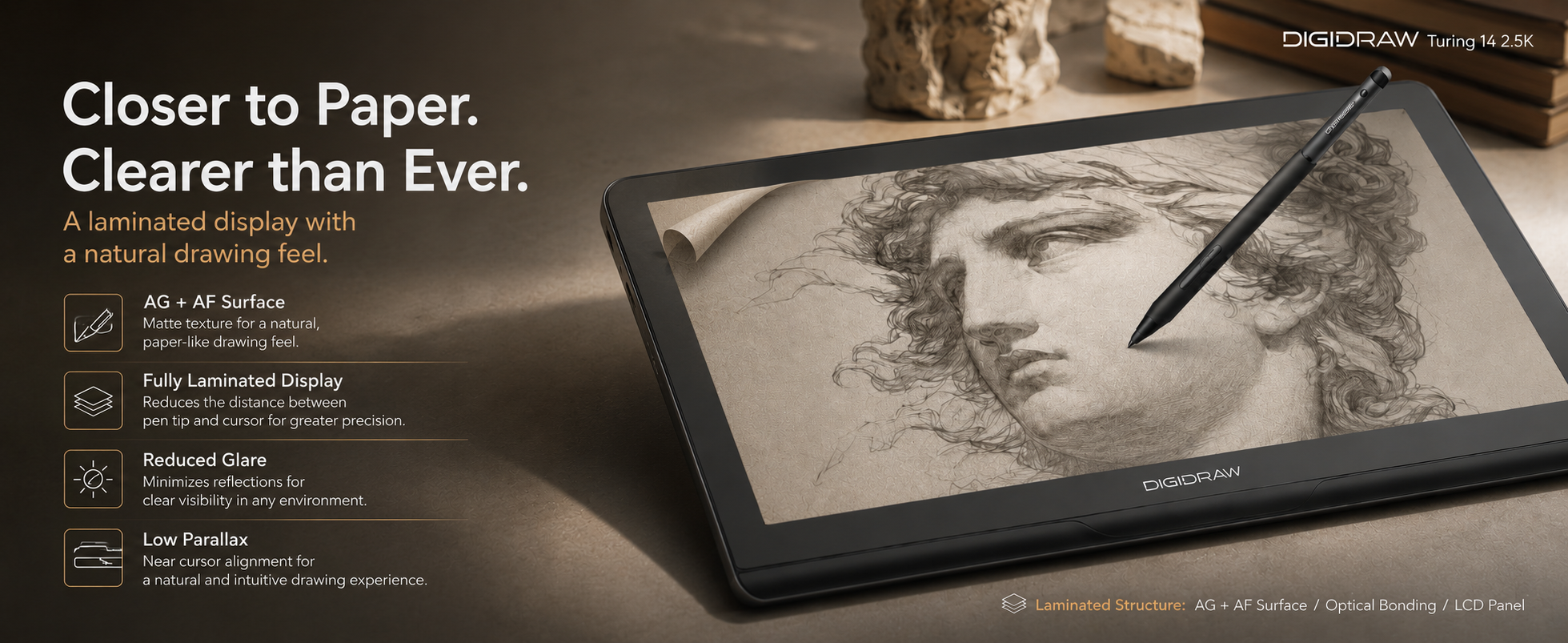
Traditional display structures can have space between the protective glass, display panel, and sensing layer. That distance contributes to parallax, where the pen tip and the visible cursor or artwork can appear slightly separated.
Full lamination reduces the space between those layers, creating a more direct connection between the pen tip and the image.
This can be especially noticeable in detailed line work, lettering, industrial design sketches, and other precision-oriented tasks.
For someone who spends several hours drawing directly on the screen, this is more than a technical feature. It affects how natural the whole surface feels.
Some features are easy to overlook because they do not appear in the headline specifications.
Anti-glare treatment can reduce reflections from studio lighting, windows, and other environmental light sources. Anti-fingerprint treatment helps reduce visible oil marks and fingerprints on the surface. Neither directly increases resolution or color accuracy, but both can affect everyday usability.
That matters because professional work is often less about a five-minute demo and more about repeated use over long sessions.
A display that looks excellent in a quick product photo still has to remain comfortable and usable when you are working on it for hours.
Tilt recognition is another feature that makes more sense once you think about actual drawing behavior.
Traditional tools behave differently depending on how they are held. A pencil held upright can create a narrower mark, while a tilted tool can produce broader strokes or softer shading.
Tilt recognition allows digital drawing software to respond to the angle of the stylus and adjust brush shape, stroke width, shading, or direction.
For artists who rely heavily on brush behavior and expressive strokes, tilt support can contribute to a more natural experience.
For someone who mostly creates clean vector shapes, it may matter much less.
Again, the feature only becomes valuable when it connects to your actual workflow.
This is one of the least glamorous parts of a pen display, but it can be one of the most important.
The pen and display can be excellent on paper, but if drivers are unstable or software compatibility is poor, the experience can become frustrating quickly.
For beginners, stable drivers, easy setup, reliable pressure response, and software compatibility can matter more than having the most advanced specification sheet.
For professional users, the same principle applies at a larger scale: your hardware needs to work reliably with the applications and workflow you already depend on.

A useful way to think about a professional pen display is to group the specifications into four areas:
Pen performance
Pressure response, tracking, report rate, LPI, and tilt support.
Display quality
Resolution, PPI, color gamut, and color accuracy.
Drawing interface
Full lamination, surface treatment, and the way the pen interacts with the screen.
Workflow reliability
Drivers, software compatibility, and the practical setup around the device.
No single category should automatically dominate the others.
A display with excellent color but poor pen response may frustrate an illustrator. A display with very high pressure sensitivity but weak color performance may not be suitable for a designer. And a technically impressive device can still be the wrong choice if its size does not fit your workspace.
The strongest setup is the one where the important parts are balanced around the way you work.
 Size is one of the areas where there is no universal answer.
A larger display can provide more room for timelines, tools, references, and complex creative software interfaces. At the same time, a smaller professional display may be easier to fit into a working environment or move between spaces.
That makes the middle ground interesting.
For professional creative work, the goal is not simply to maximize screen size. A 19-inch-class display can provide enough workspace for detailed work without taking over an entire desk, while remaining relatively practical to move when your working environment changes.
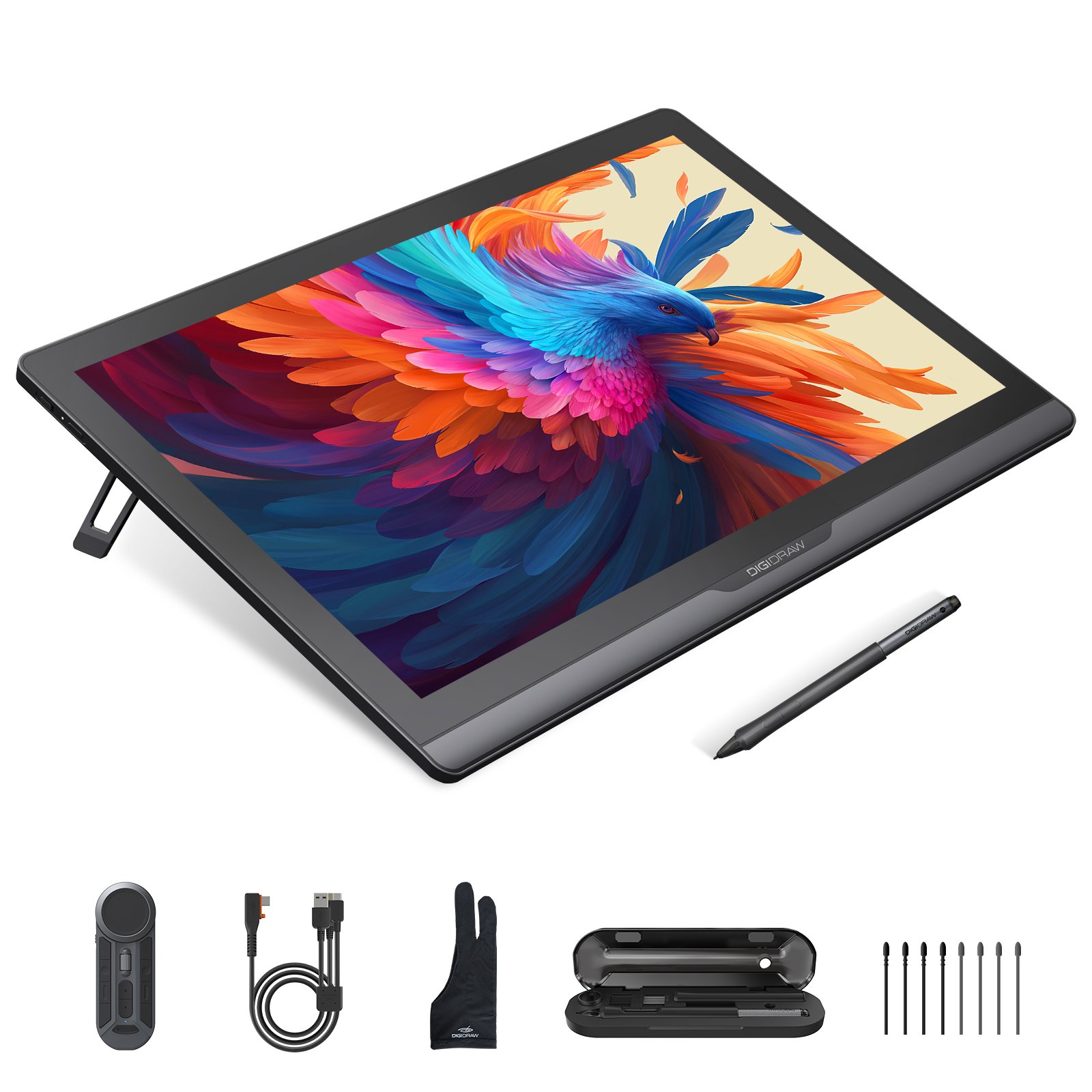
This is one reason products such as the DIGIDRAW D1901T are positioned around the idea of balancing working space with practicality, rather than assuming that bigger automatically means better.
The D1901T combines a 19-inch-class format with True 4K resolution and is positioned as a professional creative display. The current campaign also places it at $695, with a K30 portable shortcut controller and a professional color-management solution with a color calibrator.
Its intended workflows include illustration, game and concept art, 3D modeling, product design, graphic design, concept design, and other professional digital creative work.
That combination is worth considering not because one specification wins the argument, but because it addresses several of the practical questions that come up when choosing a professional display:
How much workspace do I really need?
How important is 4K for my work?
How much control do I need over color?
And how much of my budget should go toward the display itself?
A professional pen display is easy to shop for as a collection of numbers.
It is harder, but much more useful, to shop for it as part of a creative workflow.
For one artist, that may mean prioritizing pressure response and tracking. For another, it may mean accurate color and a high-resolution screen. Someone working in 3D may care more about workspace and responsiveness, while another creator may simply need a reliable display that fits comfortably on a limited desk.
The important features are the ones that remove friction from the work.
That is ultimately a better way to compare professional pen displays than chasing the highest specification in every category. The goal is not to own the biggest numbers. It is to have a tool that becomes predictable enough that you stop thinking about the hardware and start thinking about the work.


