
-
Products
Pen Display SeriesPen Tablet SeriesAccessories
- Enterprise
- Community
- Support
Nothing happens.
You press one of the shortcut keys on the tablet. Still nothing.
The tablet itself is working. The pen moves the cursor. You can draw normally. But the buttons that are supposed to save you time have suddenly stopped doing anything.
This is a surprisingly common kind of tablet problem, and it is easy to jump to the conclusion that the buttons are broken.
Before you do that, check whether the problem is actually with the hardware.
A shortcut key has to pass through several parts of the setup before anything happens: the physical button, the tablet driver, and the application receiving the command. A failure in any one of those places can make a perfectly good button appear useless.
Open the tablet driver and look at the device status.
If the driver does not recognize the tablet, there is little point troubleshooting the shortcut keys yet. The connection itself needs to be fixed first.
If the driver recognizes the tablet normally, continue with the buttons.
This simple check can save you from changing shortcut settings when the actual problem is that the computer is not communicating with the tablet correctly.
If you are using a tablet with physical shortcut keys, press one of them and watch the tablet's indicator light, if your model has one.
This can help separate a physical-button problem from a software problem.
The Turing troubleshooting procedure uses the same approach: check whether the indicator responds when the button is pressed, then test whether the assigned shortcut produces an effect.
If there is no visible response at all, keep the hardware side in mind.
If the tablet reacts but the assigned function does nothing, the problem may be with the configuration.
Before testing something complicated like a Photoshop command, assign the shortcut to a simple letter or number.
Then open a basic document or text field and press the button.
For example, assign a button to:
A
or
1
If the button produces the letter or number correctly, the physical button and basic input path are probably working. You can then move on to the application-specific shortcut.
This is much easier to diagnose than testing a complex command and wondering whether the command itself is supported.
The internal troubleshooting procedure specifically suggests assigning a shortcut to a letter or number as a way to test whether the button is functioning.
Open the tablet driver and look at the shortcut configuration.
Make sure the hardware keys have not been disabled.
This is particularly easy to overlook after changing profiles or settings.
If the driver provides an enable or disable control for the shortcut keys, make sure they are active before testing again. The troubleshooting material specifically includes checking whether physical shortcut keys have been disabled in the driver.
There is no reason to reinstall the driver at this stage if the tablet is already recognized and the shortcut settings are simply disabled.
Pen buttons need to be checked in much the same way, but there is one extra variable: the button may be physically fine while the assigned command is not working in the current application.
Start in the tablet driver.
Check what each pen button is assigned to.
Then test a simple function before moving back to your usual Photoshop or drawing workflow.
If the button works with a simple command but not with a particular application shortcut, the problem is less likely to be the pen itself.
This is one of the most useful checks when a shortcut seems to do nothing.
Suppose you assign a tablet button to a command that should already work from the keyboard.
Press the corresponding keyboard shortcut.
If the keyboard shortcut does not work either, the tablet button is probably not the real problem. The application may not be responding to that command in its current state.
The troubleshooting guidance makes the same distinction: test the function with a keyboard or mouse first. If the keyboard or mouse cannot trigger the function, the tablet driver cannot make the function work either.
This is a useful little test because it separates:
“The button does not work.”
from
“The command does not work.”
They are not the same problem.
A shortcut may work normally on the desktop and behave differently inside a creative application.
That does not necessarily mean the tablet is malfunctioning.
Tablet input can depend on the application and the input method it uses. The support material includes software-specific cases involving programs such as Krita, GIMP, Photoshop and ZBrush, where tablet input behavior can differ depending on configuration.
So test the same button somewhere else.
A simple example:
Set one button to a letter.
Test it outside your drawing application.
Then test it inside the application.
If it works outside the application but not inside, investigate the application's shortcut or tablet-input settings before touching the hardware.
Some tablet models include a physical switch that can disable the shortcut keys.
It is easy to overlook because the tablet can otherwise continue working normally.
If your model has such a switch, make sure it is turned on.
The support procedure specifically lists this as one of the checks for unresponsive shortcut keys.
This is exactly the sort of problem that can look mysterious until you notice the switch.
There is another problem that can look similar:
The button itself works, but your custom assignment disappears or refuses to save.
That is a different issue from a dead button.
For this situation, the support procedure recommends opening the driver with administrator privileges and then configuring the shortcut again.
So pay attention to what is actually happening.
If the button does nothing, troubleshoot the input.
If the button works but the custom setting will not stay saved, troubleshoot the configuration.
Reinstalling the driver can make sense when the device is not being recognized correctly or when the driver configuration itself appears to be malfunctioning.
It should not necessarily be your first response to a single shortcut that has stopped working.
If you do need to reinstall it, remove the existing tablet driver first, restart the computer, and then install the correct driver. Installing a new tablet driver directly over an older one can cause conflicts.
And close your drawing software before installing the driver.
After the installation, test the tablet in the driver before going back to your main drawing application.
When every pen button and every tablet shortcut has stopped responding at the same time, start with the basics.
Check:
Is the device connected in the driver?
Does the tablet show any response when a button is pressed?
Are the shortcut keys disabled?
Does the tablet have a physical shortcut switch?
Does a simple letter or number assignment work?
Does the same command work from the keyboard or mouse?
These checks cover most of the useful branches before you need to consider a deeper hardware problem.
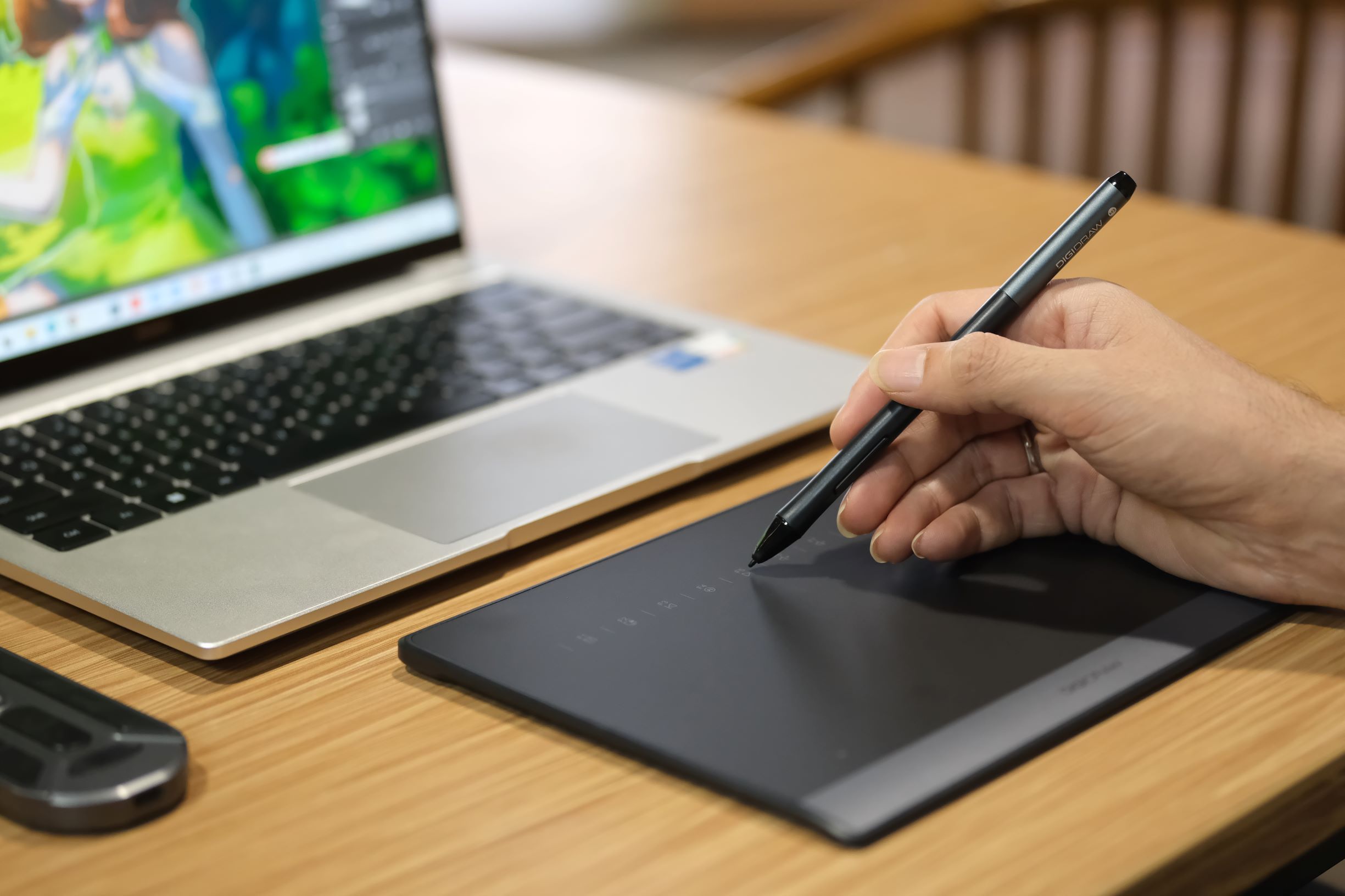 The same troubleshooting approach applies to DIGIDRAW devices.
Start by checking whether the DIGIDRAW driver recognizes the tablet. Then test a shortcut with a simple letter or number before moving on to application-specific commands.
If a shortcut does not work, check whether the keys have been disabled in the driver and, on models that include a shortcut-key switch, make sure it is enabled.
For a custom shortcut that refuses to save, running the driver with administrator privileges is also worth checking.
The useful part of this process is that you do not need to treat every button problem as a hardware failure. Testing the button with a simple command, then testing that same command outside the drawing software, can usually tell you where to look next.
Hardware becomes a stronger possibility when the tablet is properly connected, the driver recognizes it, the shortcut keys are enabled, simple assignments do not respond, and the buttons still fail after testing the setup on another computer or after the software side has been ruled out.
At that point, continuing to change shortcut assignments is unlikely to tell you much more.
The existing troubleshooting process follows the same basic logic: rule out connection and software issues first, then consider the physical device when those checks do not solve the problem.
When contacting support, describe what the button does rather than simply saying that it is broken.
For example:
The pen button does nothing in Photoshop, but it works when assigned to a number in a text field.
That is much more useful than:
My pen button doesn't work.
Try these in roughly this order:
Check that the tablet is recognized by the driver
Press the button and check for a physical response, where applicable
Make sure shortcut keys are enabled
Check any physical shortcut-key switch
Assign a simple letter or number
Test that function with the keyboard or mouse
Try the button in another application
Reinstall the driver only when the driver itself appears to be involved
The important thing is to test the button separately from the command.
Once you know which one is failing, the problem becomes much easier to solve.
And when those shortcut keys are working again, they can go back to doing what they were supposed to do in the first place: keeping your hands on the creative work instead of sending you back to the keyboard.


