
-
Products
Pen Display SeriesPen Tablet SeriesAccessories
- Enterprise
- Community
- Support
There is a particular kind of drawing tablet problem that can be much more confusing than a complete failure.
The tablet is connected. The cursor appears. The driver may even say everything is working normally. But the pointer starts moving when you are not touching the pen, jumps across the screen, or drifts slightly around the area where the pen is hovering.
Sometimes it happens constantly. Sometimes it disappears after reconnecting the tablet and then comes back later.
The good news is that a pen moving by itself does not automatically mean the tablet is broken. In many cases, the cause is something fairly simple: interference, the pen being detected while hovering, a driver issue, or an input conflict elsewhere in the system.
Here is a practical way to work through it without immediately reinstalling everything.
 Before changing settings, pay attention to the exact behavior.
Does the cursor move when the pen is completely away from the tablet?
Does it move only when the pen is close to the surface?
Does the cursor jump suddenly, or does it slowly drift?
Does the problem happen everywhere in Windows or macOS, or only inside Photoshop, Clip Studio Paint, Krita, or another application?
These details matter because they can point to very different causes.
For example, a cursor that moves only when the pen is hovering close to the tablet is different from a cursor that keeps moving even after the pen has been placed several inches away.
The easiest test is also one of the most useful.
Put the pen down somewhere away from the tablet and watch the cursor.
If the cursor immediately stops moving, the tablet is still detecting the pen while it is hovering.
That does not necessarily indicate a hardware failure. A battery-free pen relies on the tablet's electromagnetic sensing system, so the pen does not need to touch the surface for its position to be detected.
A normal hover response should stop once the pen is outside the tablet's sensing range. If the cursor continues moving even when the pen is clearly away from the tablet, continue with the checks below.
 Because the pen and tablet communicate through an electromagnetic field, the environment around the tablet can matter.
Try temporarily moving away anything that is sitting directly beside, underneath, or on top of the tablet.
That includes:
You do not need to turn your entire desk into a laboratory. Just simplify the setup for a few minutes and see whether the behavior changes.
If the cursor becomes stable after removing nearby devices, you have a useful clue.
The purpose of this test is not to prove that every electronic device will interfere with a drawing tablet. It is simply a quick way to rule out environmental interference before spending time on software troubleshooting.
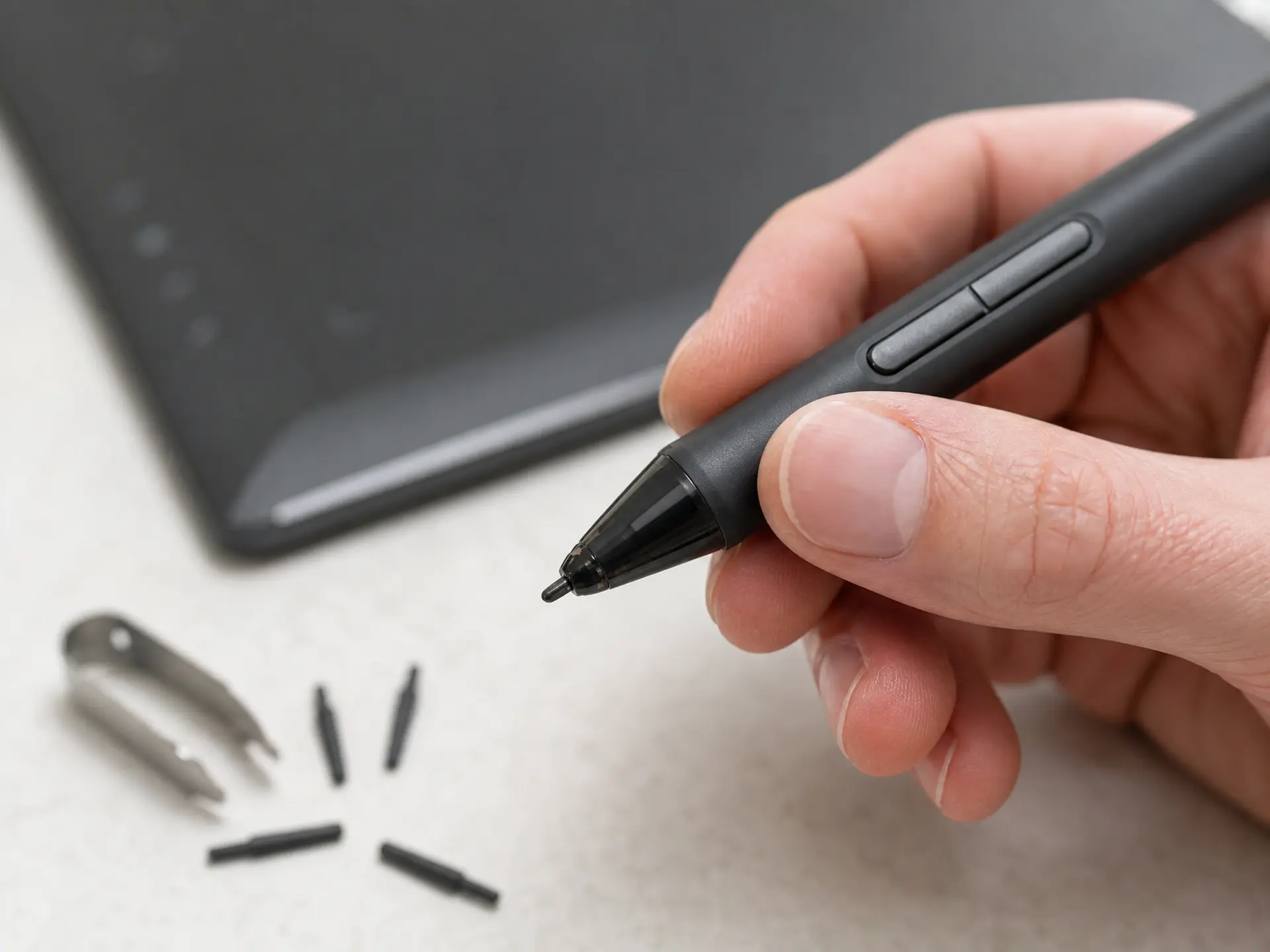 The pen tip is easy to overlook.
If the nib is damaged, worn down, loose, or sitting incorrectly, it can sometimes create unusual input behavior.
Remove the nib according to your pen's instructions and inspect it.
Look for anything obviously wrong:
Replacing the nib is a relatively simple test, especially if you have spare nibs available.
It is also worth checking whether the problem changes after gently rotating the pen in your hand. You are not trying to fix the pen by rotating it; you are simply observing whether the behavior follows the pen's position or orientation.

It sounds basic, but it is worth doing before deeper troubleshooting.
Disconnect the tablet.
Restart the computer.
Reconnect the tablet after the operating system has fully loaded.
Then test the pen before opening your main drawing software.
This is especially useful when the problem appeared suddenly after waking the computer from sleep, switching applications, plugging in another USB device, or changing displays.
A temporary driver or input-state problem can disappear after a clean restart.
This is one of the most useful troubleshooting steps.
Open your drawing tablet driver and check the pen there.
Move the pen across the tablet without opening Photoshop or another creative application.
If the cursor is already moving by itself inside the driver interface, the problem is probably somewhere in the tablet, pen, connection, driver, or system input layer.
If the pen behaves normally in the driver but becomes unstable only inside one application, the tablet itself may not be the problem.
That changes the next step completely.
Instead of reinstalling the entire driver, check the input settings of the application where the problem occurs.
This simple separation can save a lot of unnecessary troubleshooting.
Drawing applications do not always handle tablet input in exactly the same way.
A pen may behave normally on the desktop but become strange in Photoshop. It may work in Photoshop but behave differently in another application.
When that happens, check the tablet input settings inside the affected program.
Depending on the software and operating system, settings related to WinTab, Windows Ink, tablet input, or pen input can change how the application receives information from the tablet.
Do not change several settings at once.
Change one input setting, restart the application, and test again.
That makes it much easier to identify what actually fixed the problem.
 If the cursor is still moving by itself everywhere, the driver is worth checking next.
This is particularly important if you recently:
Older tablet drivers can sometimes remain installed even after switching devices, which can create conflicts.
A clean driver installation is usually a better approach than repeatedly installing one driver over another.
Before reinstalling, remove the old tablet driver if necessary, restart the computer, and then install the correct driver for your tablet and operating system.
After installation, restart again and test the pen in the driver before opening your creative applications.
If you are using a USB hub, dock, extension, or adapter, temporarily connect the tablet directly to the computer.
This is another simple elimination test.
A direct connection removes several variables at once:
tablet → cable → USB port → computer
rather than:
tablet → cable → hub/dock → adapter → computer
You do not have to assume the hub is defective. The point is simply to reduce the number of things involved while diagnosing the problem.
It is also worth trying another USB port and checking the cable if you have a suitable replacement.
A strange cursor can sometimes look like a pen problem when it is actually a display-mapping problem.
This is especially easy to notice when using two or more monitors.
The pen may be assigned to the wrong display, or the mapping may not match the screen you are currently working on.
Open the tablet driver and check the monitor or screen mapping settings.
Make sure the active area of the tablet corresponds to the display you expect to control.
If the problem started after adding, removing, or rearranging a monitor, this becomes an especially important check.
When you have worked through the software and connection checks and still cannot explain the behavior, testing the tablet on another computer can be extremely helpful.
You are not necessarily looking for a permanent second setup. You are trying to answer one question:
Does the problem follow the tablet?
If the pen behaves normally on another computer, the original computer's driver, operating system, USB configuration, or application setup becomes more likely.
If the same abnormal movement appears on another computer as well, the pen, tablet, or physical environment deserves more attention.
This is one of the cleanest ways to separate a software problem from a hardware problem.
Software troubleshooting should come first because many cursor problems are caused by configuration or input conflicts.
But hardware becomes more suspicious when the behavior remains after you have:
At that point, pay closer attention to whether the behavior is tied specifically to the pen or tablet.
A damaged pen, abnormal sensing behavior, or physical connection issue may require further inspection or support.
You do not need to try everything at once.
A sensible order is:
Move the pen away → remove nearby electronics → check the nib → restart → test in the driver → test another application → check WinTab/Windows Ink or tablet input settings → reinstall the driver if necessary → simplify the USB connection → test another computer.
This order starts with the easiest checks and gradually moves toward more involved ones.
It also helps avoid the most common troubleshooting mistake: changing five things at once and then not knowing which change actually solved the problem.
The same diagnostic logic applies when troubleshooting a DIGIDRAW tablet.
Start by checking whether the pen is being detected normally in the DIGIDRAW driver. Then separate the problem into hardware, driver, connection, and application layers rather than assuming the tablet itself has failed.
For example, pressure and pen-input problems should first be tested in the driver before moving into application-specific settings. This makes it easier to determine whether the problem comes from the tablet input itself or from the software receiving that input.
When reinstalling a driver, a clean installation is preferable to simply installing a new version over an older driver, since old drivers can create conflicts.
That way, troubleshooting becomes a process of elimination rather than a series of random fixes.
A drawing tablet pen that moves by itself looks alarming because the problem feels unpredictable. In practice, it is often possible to narrow it down quite quickly.
Start with the simplest question:
Is the tablet detecting the pen when it should not?
Then move outward from there: environment, pen, driver, software, connection, and finally hardware.
Once you identify which layer is responsible, the problem usually becomes much less mysterious.


